If you’ve ever tried sharing a long Amazon link, you know how messy and overwhelming it can look. Luckily, shortening Amazon links makes sharing much easier – especially for marketing, social media, and email campaigns.
In this guide, we’ll walk you through how to quickly and easily shorten your Amazon links using an advanced link-shortening tool designed to boost your brand’s online presence.
The best way to shorten Amazon links is by using a dedicated URL shortener. These tools do more than just clean up your URLs – they allow you to customize, track, and manage your links effortlessly.
We recommend Replug – a user-friendly, feature-packed link shortener that’s both affordable and efficient. Replug streamlines link management so you can focus on what matters: growing your brand and engaging your audience.
[BrandedShortLinksCta]
Step-by-step guide to shorten Amazon links
Start by logging into your Replug account. If you don’t have an account yet, you can easily sign up and enjoy a 14-day free trial – no credit card required.
Step 01: Add your Amazon URL
Copy the Amazon link you want to shorten.
Go to your Replug dashboard and paste it into the “ Quickly Shorten your link” bar.
Click the Checkmark icon or press Enter to move forward.
Step 02: Shorten your Amazon URL
Your Amazon URL will be automatically shortened.
Edit your URL if needed for better customization.
Click “Save Shortened Link” to generate your shortened version.
Your new, clean link is now ready to share wherever you like.
Step 03: Customize link settings (Optional)
You can enhance your shortened Amazon links with additional features:
Tracking your Amazon links gives you valuable insights into your audience’s behavior and helps you optimize your marketing strategies for better results.
Conclusion
Shortening your Amazon links with a URL shortener simplifies the entire link-sharing process, making it more efficient and professional. Not only does it clean up long and messy URLs, but it also offers advanced features like customization, performance tracking, and link management – all in one platform.
FAQ’s on Amazon links
Why should I shorten Amazon links?
Shortening Amazon links makes them cleaner, easier to share, and more professional. It also helps track engagement and improve click-through rates across different marketing channels.
Can I customize my shortened Amazon links in Replug?
Yes! With Replug, you can customize your link slug, choose a custom domain, add UTM parameters for tracking, and even set retargeting pixels.
Is it possible to track the performance of my shortened Amazon links?
Absolutely. Replug provides detailed analytics like total clicks, geographic data, device information, and browser stats to help you measure your link performance.
Can I organize multiple Amazon links inside Replug?
Yes, Replug allows you to create folders, categorize links, add tags, and use a search function to manage and quickly find your links.
Pinterest is where your ideas live. Instagram is where your people are. So why not connect the dots?
You’ve poured your aesthetic into your Pinterest boards. You’ve curated visuals that reflect your vibe, your brand, or just your current obsession (yes, even that “cottagecore dream kitchen” board you revisit daily).
Now imagine your Instagram followers could explore that world too, directly from your Instagram bio.
Sounds dreamy? That’s because it is.
In this blog, we’ll walk through exactly how to link Pinterest to Instagram, whether you’re a business owner, content creator, or someone who just loves visual storytelling. Plus, we’ll show you how to take it beyond the basics with a smarter way to do it with bio links.
[SingleBioLinksCta]
How to get your Pinterest profile and board link?
Before you can share your Pinterest on Instagram, you need the actual link. And the good news is that it’s super easy! Here’s how to do it:
How to get your Pinterest profile link
Open Pinterest.
Tap your profile picture.
Copy your Pinterest link from the search bar.
And just like that, you’ve got your Pinterest profile link.
How to get a Pinterest board link
Go to the specific board you want to share.
Copy board link from browser.
This is great if you want to spotlight a specific mood board, product collection, or project.
Now that you’ve got the right link, let’s move on to the fun part: adding it to Instagram.
Why link Pinterest to Instagram?
But first, why even link Pinterest to Instagram?
It’s simple: Because Pinterest and Instagram are like two sides of the same aesthetic coin. Pinterest is for saving ideas. Instagram is for sharing them.
When you link Pinterest to Instagram, you’re not just adding a URL; you’re creating a visual journey for your followers.
Here’s why it’s worth doing:
Let followers explore your ideas in more depth.
Promote your brand, blog, products, or inspiration.
Drive more traffic to your Pinterest (and boost your visibility).
Make it easier for people to discover what you really love.
In short: you’re helping your audience go from scrolling to exploring.
How to link Pinterest to Instagram (2 simple ways)
There are two main methods, one is super quick and the other is way more customizable. Let’s break them down:
1. Use Instagram’s built-in link option
Open Instagram.
Go to your profile and tap Edit Profile.
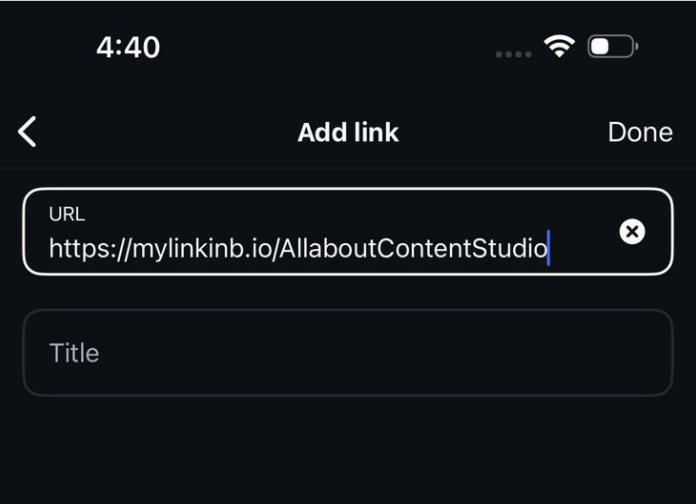
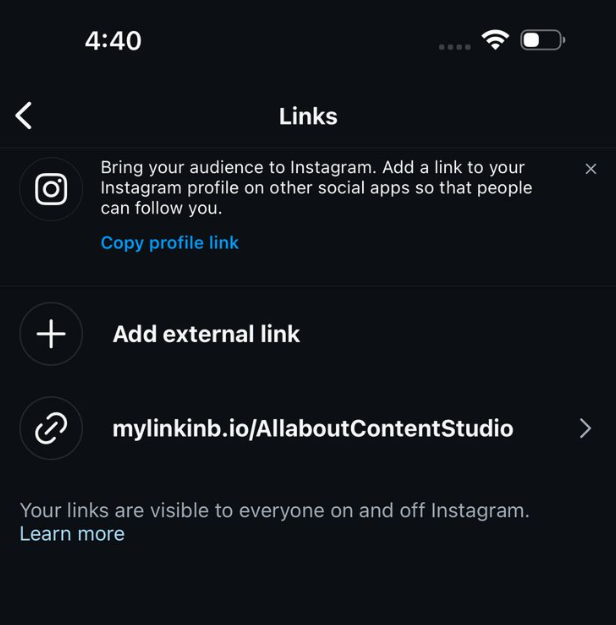
Click on Add Link.
Tap Add external link.
Paste your Pinterest URL.
Write a title like “My Pinterest” or “Moodboard Zone”.
Tap the checkmark button. Your Pinterest link will now be added to your Instagram profile for your followers to see.
Boom. You’re done!
But here’s the thing: Instagram only gives you only 5 clickable links (and honestly, they might look a little messy as well). If you’re like most creators or businesses, you’ve probably got more than one thing you want to share.
If you’re wondering how to link Pinterest to Instagram and still have room to showcase your other platforms, Replug’s bio link feature is your answer.
Replug comes with building a high-converting landing page, designed for people who want their bio toactually do something. So, instead of having a lonely “Follow me on Pinterest” link, your bio becomes a curated destination that reflects your full digital presence.
How to do it with Replug:
Log in to your Replug account. If you don’t have an account, create one.
Go to “Bio Links”
Click on “Create new”
Click “Content” on the left panel of the bio link creation page.
Add a social block for your Pinterest profile or board and select Pinterest. You can add up to 8 social blocks of your liking.
Publish your bio link
Enter your Pinterest URL and click “Add block”. Your block will now be added to your bio link landing page.
Bonus tip: You can also use the card block for a visual touch! Just click on the “Card” block, enter your Pinterest URL, give your card a name, and add a screenshot of your Pinterest aesthetic.
Copy your bio link URL.
Add your Replug bio link URL to your Instagram profile (refer to method 1).
Voila! You now have a beautiful, shareable, multi-link landing page where Pinterest is just one tap away.
Benefits of using bio links for Instagram (with Replug)
Instagram gives you one link. Replug gives you an entire experience.
Instead of pasting a basic Pinterest URL into your bio and calling it a day, Replug lets you build a complete, aesthetic, and interactive space that feels like an extension of your feed.
[CustomizableBioLinksCta]
Here’s what you unlock when you use Replug instead of just pasting a link:
1. More than one link
You’re not limited to your Pinterest profile. You can add all your socials, such as X (Twitter), YouTube, TikTok, LinkedIn, your website, blog, shop, and more.
2. Visual blocks
Why settle for a boring link when you can display your Pinterest boards in style? Use Card blocks to show off individual boards or your entire profile with eye-catching visuals that blend beautifully with your Instagram aesthetic.
3. Brand consistency
Fonts, colors, layout—it all matters. Replug lets you design your landing page to match your Instagram vibe, so your audience enjoys a seamless brand experience from bio to board.
4. Better engagement
Don’t just point people to Pinterest. Guide them. Use multiple blocks to highlight your most important boards, top-performing Pins, blog links, or current campaigns. This leads to higher engagement across your social platforms.
5. Retargeting pixels
Want to bring visitors back? With Replug, you can add retargeting pixels to your bio page. That means anyone who clicks your Pinterest link can be shown ads later (yes, even from a link in your bio).
6. Analytics
Track everything. Replug shows you how many clicks you’re getting on your bio link and Pinterest profile/board and how your audience interacts with your content. Use those insights to fine-tune your strategy.
7. Dynamic QR codes
Replug lets you create fully customizable, dynamic QR codes linked to your bio page. These aren’t just pretty codes—they’re editable, trackable, and brandable. You can update the destination later without needing to reprint the code.
From pinning to linking
Learning how to link Pinterest to Instagram isn’t just about sharing a URL; it’s about creating an unforgettable brand experience. Whether you go with Instagram’s native option or level up with Replug, you’re giving your audience more ways to connect, engage, and explore.
Because the truth is? Your followers want more than a pretty feed.
They want the full picture.
FAQs for how to link Pinterest to Instagram
How to get your Pinterest profile link?
Go to your profile > tap share > copy link.
Can I link a specific Pinterest board to Instagram?
Yes. Follow the same steps as you would for your profile, but from the relevant board.
How to link Instagram to Pinterest?
Create a pin and use your Instagram post URL as the destination link.
How many Pinterest links can I add to Instagram?
Just one via Instagram’s native feature. But with Replug, you can add multiple!
Can I customize how my Pinterest appears in my bio?
Only with tools like Replug, where you can style it with cards, colors, and layout.
Can I see how many people are clicking my Pinterest link?
Absolutely! Replug’s link analytics let you see how many people are clicking on your Instagram profile. From total clicks to unique clicks, you have it all!
Know that in today’s world your online presence matters almost as much as in-person interactions, crafting the perfect bio can significantly impact how others perceive you on social media.
Whether you’re looking to make new connections, reconnect with old friends, or establish your personal brand, your bio is a powerful part that conveys who you are in just a few carefully chosen words.
This guide brings you over 200 creative, engaging, and personality-driven Facebook bio ideas to help you stand out.
Plus, we’ll walk you through essential tips for writing bios that not only attract attention but also drive action.
Pro tip: Want to take your Facebook bio even further? Tools like Replug let you add custom CTAs, branded links, and even set up a link-in-bio page – giving visitors a clear next step right from your profile. It’s a simple way to turn profile visits into real engagement.
[LinkManagementCta]
How to write a perfect Facebook bio?
Here are six tips to help you craft the perfect Facebook bio.
1. Keep it short and punchy
Facebook gives you limited space – so make every word work hard. Focus on the essentials and craft a bio that’s crisp, clear, and memorable. Take inspiration from Gary Vaynerchuk, who nails it with a short yet powerful Facebook bio.
2. Optimize for discovery
Think like a search engine! Use relevant industry-specific keywords to boost your profile’s visibility in Facebook searches. It helps you connect with people who are genuinely interested in your niche and expertise.
A great example of this is ContentStudio’s Facebook bio, where they smartly weave in keywords related to content marketing and social media management, making it easier for their ideal audience to find them.
3. Drive action with CTAs
Give people a next step! Adding a custom CTA in your bio section, such as “Check out my latest project,” “Follow my journey,” or “Message me for collaborations,” can make your bio more engaging and actionable.
Your bio shouldn’t feel robotic. Show off your brand voice, your vibe, and what makes you you. Authenticity builds trust and relatability.
And if you want your Facebook profile to look as good as it sounds, try polishing your visuals with an Instagram photo editor. A clean, professional image can complement your catchy bio and leave a stronger first impression.
Levi’s Facebook bio is a great example – blending brand personality with a strong emotional connection.
5. Look pro with branded links
To add a professional touch to your bio, use clean, branded links that align with your personal brand. Branded links not only make your profile look polished but also help you maintain consistency across your online presence.
6. Create your content hub
Take your bio to the next level by using a tool like Replug. With Replug, you can create a custom link-in-bio page – letting you showcase multiple links, promotions, or offers in one spot. No more updating your bio every time you launch something new!
[CustomizableBioLinksCta]
Create Facebook bio ideas with AI (Free & easy)
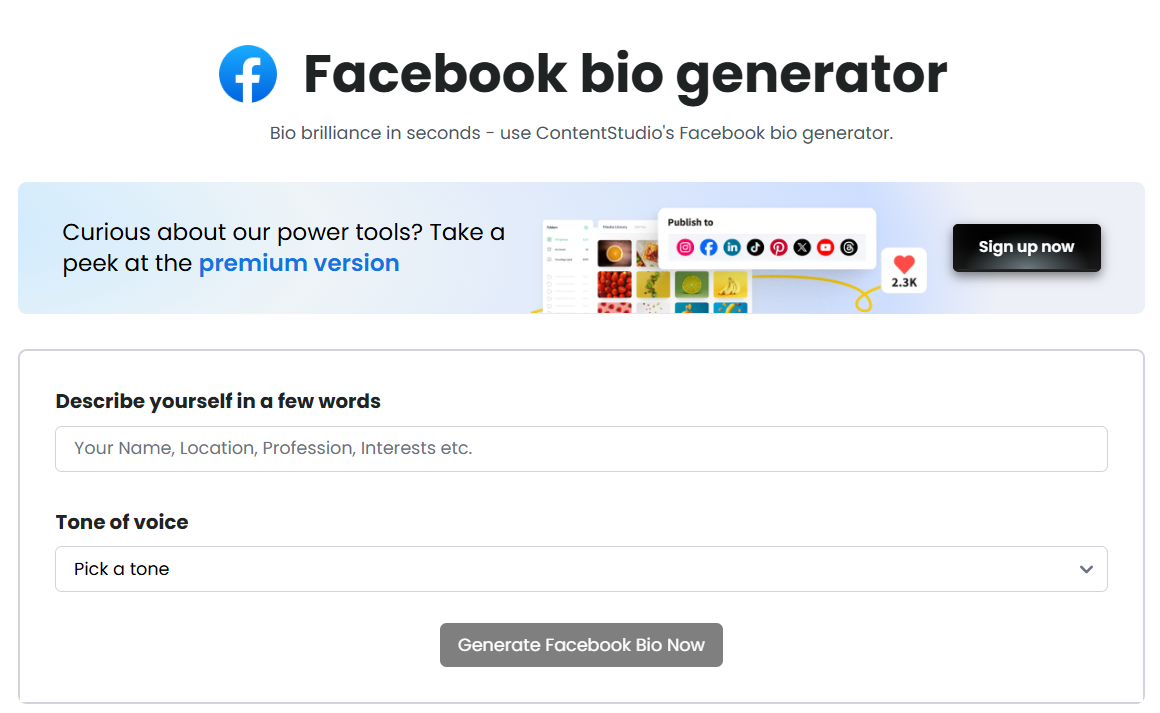
If you’re struggling to come up with the perfect Facebook bio, ContentStudio’s Facebook Bio Generator is a game-changer. It uses AI to generate creative and personalized bio suggestions in just seconds.
All you have to do is describe yourself in a few words – like “coffee lover,” “small business owner,” or “fitness enthusiast” and then choose your tone of voice, such as friendly, professional, witty, or casual. Based on your input, the AI instantly crafts bios that match your personality and vibe.
It’s quick, beginner-friendly, and perfect for anyone who wants a unique, standout Facebook bio without overthinking it.
“Creating my own sunshine ☀️ | Spreading kindness 💕”
“Artist 🎨 | Dreamer 💭 | Coffee enthusiast ☕”
[SingleBioLinksCta]
Additional tips for creating your perfect Facebook bio
Show personality – Let your unique character shine through.
Consider your audience – Think about who will be reading your bio.
Use emojis strategically – They can add personality but don’t overdo it.
Include keywords – If you want to be found for certain interests or skills.
Balance humor and information – A joke is great, but also include something substantive.
Proofread – Typos can undermine an otherwise perfect bio.
Ask for feedback – Get input from friends before finalizing your bio.
Conclusion
Your Facebook bio may be limited in characters, but its impact is boundless. It’s often the first element of your profile that catches your attention and creates an impression.
And if you’re looking to enhance your bio even further, tools like Replug can take things to the next level. With Replug, you can create a custom link-in-bio page, add branded links, and include CTAs that help guide your visitors to the next step.
Plus, its built-in analytics let you track your link performance, ensuring your bio is not only catchy but also effective at driving engagement.
[LinkManagementCta]
As social media continues to evolve as a platform for both personal connections and professional networking, the importance of a well-crafted bio cannot be overstated. It serves as your digital handshake, your first impression in an increasingly virtual world.
Remember, the best Facebook bio is one that authentically represents who you are while engaging those who visit your profile. Don’t be afraid to experiment until you find the perfect words to express yourself!
The ideas presented in this guide are starting points; feel free to mix, match, and modify them to create something uniquely you.
FAQ’s about Facebook bios
How often should I update my Facebook bio?
There’s no rule about how frequently you should update your bio, but it’s good practice to refresh it whenever significant life changes occur, such as a new job, relationship status, move to a new city, or shift in personal interests. Many users update their bios seasonally or annually as a way to keep their profiles current and engaging.
Can I track link performance from my Facebook bio with Replug?
Yes, Replug allows you to monitor click-through rates, engagement, and other analytics for the links in your bio, so you can measure their effectiveness.
How can Replug help with multiple link management on Facebook?
Replug’s customizable link-in-bio page enables you to consolidate multiple links, including social media, websites, and promotions, in one spot – ideal for your Facebook bio.
Can I add branded links to my Facebook bio using Replug?
Absolutely! Replug lets you create branded links that boost your credibility and help visitors easily access your content or website.
Can I use special characters or emojis in my Facebook bio?
Yes! Facebook supports special characters, symbols, and emojis in bio sections. Using these strategically can help your bio stand out and express your personality with fewer characters. However, avoid overusing them as this can make your bio appear cluttered or difficult to read.
Google Sheets is a go-to tool for teams that need to collaborate in real time. But let’s be honest: sharing links manually can be a hassle. Long URLs get lost in chats, emails pile up, and before you know it, half your team is asking, “Can you resend the link?”
A QR code changes the game. With just a scan, teammates, clients, or event attendees can access your spreadsheet without the extra steps.
Whether you’re tracking attendance, managing inventory, or sharing reports, a QR code makes collaboration effortless. In this guide, we’ll walk you through how to make a QR code for a Google Sheet using Replug and its benefits.
Let’s get to it!
How to make a QR code for a Google Sheet?
Step 1: Copy Your Google Sheet URL
Open the Google Sheet you want to share.
Click on the “Share” button in the top right corner.
Adjust your sharing settings as needed and copy the generated link.
Why choose Replug to generate a QR Code for your Google Sheet?
With Replug, you get more than just a basic QR code generator. It provides a suite of features designed for businesses, marketers, and anyone who needs reliable QR code management. Here’s why Replug stands out:
Trackable QR scans: Gain insights into how often your QR code is being scanned and where it’s being accessed from.
Customizable QR codes: Personalize your QR code by changing the background and foreground colors to match your branding.
Multiple download formats: Download your QR codes in high-quality PNG or SVG formats, ensuring compatibility across all platforms.
Easy sharing: Seamlessly share your Google Sheet QR code across emails, presentations, social media, or messages.
Unlimited QR scans: Unlike many free QR code generators, Replug allows unlimited scans, making it perfect for large-scale campaigns.
Edit your link anytime: With dynamic QR codes, you can change the destination URL without having to reprint or redistribute your QR code.
[LinkManagementCta]
Whether you’re using QR codes for advertisement, team collaboration, marketing, or document sharing, Replug ensures you have full control over your links and insights into their performance.
Why do free online QR code generators fall short?
Although there are plenty of online QR code generators available, they come with limitations. Many don’t offer unlimited QR codes, dynamic QR codes, or advanced customization options. Additionally, most free tools have restricted QR scan limits, making them unsuitable for large-scale campaigns or printed materials where QR codes may expire. This is why advanced link management tools like Replug are ideal for QR code generation.
Dynamic vs. static QR codes: Which one is better?
You can generate static QR codes on Google Sheets and other platforms, but they come with limitations.
For example, if you create a QR code in Google Sheets using a formula, you can generate a QR code within the sheet itself. However:
You cannot download the QR code as a separate image to share it beyond the sheet.
The QR code is static, meaning the encoded URL cannot be changed.
If the URL is incorrect or leads to a 404 error, you’ll need to generate a new QR code from scratch.
To avoid these issues, dynamic QR codes are a much better option. With Replug, you can:
Add the QR code to your Google Sheet or share it anywhere.
Change the URL behind the QR code anytime without reprinting.
Track scan rates and user engagement.
Download high-resolution QR codes for both digital and print use.
Dynamic QR codes are ideal for businesses, marketing campaigns, and any scenario where flexibility and analytics matter.
Conclusion
Generating a QR code for your Google Sheet is a simple yet effective way to streamline collaboration and sharing. With Replug, you get access to advanced features like dynamic QR codes, tracking, unlimited scans, and customization options, making it the best tool for professional and large-scale use.
Try it today and simplify your link-sharing process!
FAQs on how to create a QR code for a Google Sheet
Can I create a QR code for a Google Sheet without a tool?
Yes, you can use a formula within Google Sheets, but it doesn’t allow customization or downloading. Replug provides a more flexible solution by providing dynamic QR codes and customization.
How do I track my QR code scans?
Replug provides analytics on how many times your QR code has been scanned, helping you measure engagement.
Can I change the link in my QR code after creating it?
Yes! With dynamic QR codes, you can update the link anytime without generating a new code.
Can QR codes expire?
Yes, QR codes can expire if you’re not using an advanced QR generator. For instance, QR codes created in Replug do not expire and can be used indefinitely.
Is there a limit to how many QR codes I can create?
Usually, yes. Free online QR code generators do not allow you to create unlimited QR codes. However, Replug allows you to generate unlimited QR codes, making it ideal for businesses and large campaigns.
What’s a better alternative to free QR code generators?
Advanced link management tools like Replug offer dynamic QR codes, unlimited scans, and extensive customization options, making them a more reliable choice.
No one likes typing out long usernames or searching for the right person to send money to. It takes time and can lead to mistakes.
That’s why Venmo QR codes are so helpful – they let you send or receive money with just a quick scan.
Whether you’re a freelancer getting paid, a small business owner, or just splitting a bill with friends, having a QR code makes things quicker and easier.
In this short guide, we’ll show you how to make a Venmo QR code – both in the Venmo app and by using a QR code generator to create a custom version.
How to create a QR code for Venmo?
Method 1: Use Venmo’s built-in QR code
Here’s how to quickly grab your Venmo QR code from the app:
Open the Venmo app on your smartphone.
On the home screen, tap the QR code icon in the top-left corner.
You’ll see three options:
Scan Code
Venmo Me
Show to Pay
Tap “Venmo Me” – this displays your unique Venmo QR code.
From there, you can download, print, or share it however you like.
Click on “Quickly Shorten Your Link” on the dashboard. And paste your Venmo link. Then click enter.
Step 3: Generate a QR code with one click
After your link is created, click the QR code icon next to it.
Replug instantly creates a branded QR code, and you can customize it with your brand colors.
Step 4: Download and share it anywhere
Save it as PNG or SVG. Use it on invoices, product packaging, business cards, your bio link, or even flyers or printed stickers.
Why use Replug to generate QR code for Venmo?
Replug takes your standard QR code to the next level. Here’s why it’s a top-notch tool for creating Venmo QR codes:
Dynamic QR codes: Update your payment links without having to reprint or redistribute the QR code.
Password protection: Keep your QR code private by restricting access with a secure password.
Link previews: Display clickable, professional-looking previews when sharing your QR code online.
Expiry dates: Set start and end dates for your QR codes – ideal for limited-time promotions or events.
[LinkManagementCta]
Traffic routing: Redirect users based on device type, location, browser, or time of day for smarter engagement.
Advanced analytics: Track QR scans, click-throughs, and engagement in real-time with detailed insights.
Team collaboration: Manage QR campaigns with your team, assign roles, and track activities all in one place.
All-in-one dashboard: Handle all your branded links, QR codes, bio pages, and analytics from a single intuitive platform
Conclusions
Venmo QR codes are the smart, simple solution to make payments fast and error-free. Whether you stick with the built-in Venmo option or take things up a notch with Replug’s customizable QR codes, you’ll save time, look more professional, and keep things moving smoothly.
FAQs on Venmo QR code
Can I use my Venmo QR code on my website or social media?
Yes! Download your code and add it to your bio, website, or social posts for easy payments.
Can I personalize my Venmo QR code?
Venmo’s default QR isn’t customizable, but you can create a personalized version with tools like Replug.
Is it safe to share my Venmo QR code publicly?
Yes, but if you’re sharing it online, consider using Replug’s password protection or expiry features for added security.
Can I track how many people scan my Venmo QR code?
With Venmo’s native QR, no – but Replug offers full tracking and analytics.
Your TikTok is popping, your Discord server is thriving… but the two aren’t linked? C’mon now. That’s like having a hype squad and forgetting to invite them to the main event.
Whether you’re building a community around gaming, memes, or chaotic late-night convos, adding your Discord to your TikTok bio can turn passive scrollers into active members. And good news? You’ve got options.
In this guide, we’ll show you two ways to add your Discord link to your TikTok bio: one using TikTok’s built-in method, and the other using Replug’s bio link (for when you want to do more with one link).
Let’s go.
Why add your Discord link to TikTok?
A viewer discovers your TikTok, enjoys your content, and wants to join your Discord community. But without a link in your bio, they’re left unsure of what to do next. What now?
Answer: nothing. Because that curiosity? Gone.
By adding your Discord link, you:
Funnel your TikTok audience to your Discord community.
Build deeper connections with fans.
Create a space for announcements, drops, convos, and more.
In short: TikTok + Discord = the ultimate creator combo.
You can keep your personal account and still get the link feature:
Open TikTok > Tap Profile.
Hit Edit Profile.
Paste your Discord invite in the “Website” field.
Now anyone visiting your TikTok can click and join your server.
Method 2: Add a clickable bio link using Replug
You don’t want to keep handing out Discord links.
If someone wants to join your jamming or streaming server, they shouldn’t have to DM you for it. Just drop your Replug bio link in your TikTok profile, and let them choose where they want to go.
[SingleBioLinksCta]
No more juggling links or repeating yourself. Replug keeps all your important links, such as your Twitch, merch, YouTube, and Discord servers, neatly in one place.
And if you ever shut down a server? Just remove it from your Replug bio link page. That’s your subtle way of saying, “yeah… that era’s over.”
Here’s how to add a bio link to your TikTik bio:
Step 1: Sign up for Replug
Go to Replug and create an account (there’s a free trial, so no excuses).
Step 2: Create your bio link page
From the dashboard, head to Bio Links.
Click Create New.
Customize your bio link page with a title, buttons, description, custom layout, colours, and background image (optional).
Step 3: Add content blocks
Click on Content.
Add a block for your Discord invite, and more blocks for Twitch, YouTube, Spotify, or even your dog’s Instagram. You do you (no one’s judging).
Social blocks:
Link blocks:
Card block:
What more can you do?
Add text, spacing, and separator blocks.
Embed a video block (Youtube, TikTok, Instagram, Facebook, and X).
Customize your link slug. A custom URL ensures that you stay on brand and recognizable.
Add a title and meta description.
Upload a picture and favicon (optional, but chef’s kiss).
Drop a tracking pixel if you’re into analytics or retargeting ads.
This is what the final preview looks like:
Step 5: Add it to TikTok
Copy your Replug bio link and paste it in the “Website” field of your TikTok profile. Now, when someone clicks it, they get a full-on hub with all your links, including your Discord.
Link cloaking & redirection: Keep your links clean and trustworthy by avoiding sending your followers to broken links.
Conclusion
Changing your Tumblr URL is a solid move, especially if you’re rebranding or aligning your content with a new direction. Tumblr makes the switch easy, but that’s just the beginning.
If you want your link to do more than just exist, it’s time to think bigger. With Replug, you’re not just customizing a URL; you’re optimizing it for clicks, conversions, and visibility. Whether you’re a content creator, business, or blogger, the ability to brand, test, and track your links can be a game-changer.
Tumblr might be your platform, but Replug turns your links into power tools.
FAQs on how to change Tumblr URL
Will I lose my followers if I change my Tumblr URL?
No. Tumblr automatically redirects your old URL to the new one, so your followers won’t be affected.
Can I change my Tumblr URL more than once?
Yes, you can change it multiple times, but your old URLs become available for others to claim.
Can I connect a custom domain to Tumblr?
Yes, Tumblr allows you to connect a custom domain, but it doesn’t offer branded previews or analytics.
What’s the difference between Tumblr’s custom domain and Replug’s branded links?
Tumblr’s custom domain changes the URL, but Replug allows branded previews, click tracking, retargeting, and much more.
Do I need a Tumblr pro account to change my URL?
No, you can change your Tumblr URL for free. However, branded domains require a fee.
Is Replug only for Tumblr users?
Not at all. Replug works across all platforms—Instagram, YouTube, TikTok, LinkedIn, email, and even blogs. You name it!
Ever wonder how top Instagram creators effortlessly grow loyal communities across platforms? Their secret: smart cross-promotion, especially linking YouTube to Instagram.
While Instagram’s one-link bio rule may seem limiting, smart creators use it to their advantage by linking their YouTube channel or videos right where it matters most.
YouTube is where your long-form content lives. Instagram? It’s where people discover you. Connecting the two not only boosts views but builds trust and loyalty across platforms.
In this guide, we’ll show you exactly how to add your YouTube link to your Instagram bio (with or without a link-in-bio tool), and which types of content actually get people to click. Ready to turn casual followers into loyal subscribers? Let’s dive in.
[SingleBioLinksCta]
Which YouTube links to add to your Instagram bio?
Adding the right YouTube links to your Instagram bio can drive traffic and boost engagement. Here are some smart options:
Your latest video – Keep your followers updated by linking to your most recent upload.
Channel homepage – Direct users to your main channel for easy access to all your content.
Playlist links – Promote specific playlists like tutorials, vlogs, or product reviews to target niche audiences.
Viral or top-performing video – Capitalize on your most popular content to grab attention fast.
Collaboration video – Highlight a video you did with another creator to build credibility and cross-promote.
Giveaway or contest video – Link to any active giveaways to increase participation and reach.
Behind-the-scenes or Q&A video – Help your audience connect with you on a personal level.
Method no 01: Add a YouTube link to bio natively on Instagram
Step 1: Copy your YouTube link
For your channel: Go to your YouTube channel > tap the three dots > tap “Share” > copy the link.
For a video: Open the video > tap “Share” > copy the link.
Step 2: Open Instagram and edit your bio
Go to your Instagram profile
Tap “Edit profile”
Paste the copied YouTube link in the Instagram bio field
Tap “Done” or the checkmark. Your YouTube link is now live in your bio!
Method no 02: Add a YouTube link to bio using link-in-bio tool
A link-in-bio tool lets you showcase multiple YouTube links under one smart link – no need to update your bio every time. We recommend using Replug: it’s affordable, easy to use, and packed with features like link tracking, customization, and branding.
Here’s how to add your YouTube link to Instagram using Replug’s bio link feature.
[CustomizableBioLinksCta]
Go to Replug and log in (or create an account). Once you’re inside, Go to the bio link dashboard and click on “Create new”.
You’ll spot three categories there Branding, Content and Settings.
Step 1: Customize the page
Under the Branding tab, customize your profile:
Add a title, description, profile image, verified badge, background image, and theme.
Once you’re done adding everything, click the “Update” button located in the corner.
Step 2: Add your Youtube links
Go to the Content tab. Click “Links” to add your YouTube videos, playlists, or channel.
Now you can add your preferred Youtube links by adding a custom title and link in the block.
Each block is customizable – add titles, icons, and scheduling options.
You can also embed YouTube videos directly or mix in text, social buttons, and cards.
You can easily rearrange or remove any block before going live. When everything looks perfect, just click “Publish” in the top-left corner to launch your custom bio link page.
Before sharing your bio link page, give it an SEO boost: Add a custom meta title, description, favicon, and featured image or Insert tracking pixels (Facebook, TikTok, Google, etc.) for retargeting and conversion tracking.
Once you’re done adding everything. Customize the bio link as per your preference and copy it.
Your custom landing page is now ready to shared on Instagram.
Paste your Replug link in the “External link” field.
This link will now lead your followers to your custom page with all your important YouTube links!
Your bio landing page is now live in your bio, giving your followers easy access to your YouTube content and more.
Conclusion
Adding your YouTube link to your Instagram bio is a small change that can bring big results. Whether you choose Instagram’s native method or a feature-rich link-in-bio tool like Replug, cross-promoting your content boosts visibility, builds deeper audience connections, and increases engagement across platforms. So don’t let your best content sit unseen, make it just one tap away.
FAQs on adding YouTube link to Instagram bio
Can I add more than one YouTube link to my Instagram bio?
Not directly through Instagram, but with tools like Replug, you can create a landing page that includes multiple YouTube links under one smart bio link.
Will Instagram let me paste a clickable YouTube link?
Yes, but only one. You can paste a YouTube video or channel link in the “Website” field of your bio, and it will be clickable.
How often should I update my Instagram bio with a new YouTube link?
If you’re doing it manually, update it every time you post something important. If you’re using Replug, just update the dashboard and your bio stays fresh automatically.
Can I track clicks on my YouTube link in bio?
Yes! Replug offers detailed analytics to track clicks, location, devices, and even lets you add retargeting pixels for advanced campaign performance.
Maybe your profile URL still screams “DJxCrayBeats2007” or some other relic from your experimental high school phase.
Or maybe you’re building a brand now, and you want that URL to reflect the new and improved you.
Whatever your reason, it’s totally valid. After all, your SoundCloud URL is your digital street sign. Let’s make sure it points in the right direction.
This guide has all that you need to know about changing and branding your URL on SoundCloud. Let’s get vibing!
TL;DR
You can change your SoundCloud profile URL on desktop only.
Use only lowercase letters, numbers, hyphens, or underscores.
Old embeds and links might stop working—no redirects included.
Replug can save your links, track them, and make sure you never lose fans to a broken URL.
How to change your SoundCloud URL? (the right way)
First things first: You can only change your SoundCloud profile URL via desktop. Mobile users, you’ll need to dust off the laptop for this one.
Here’s how to change your SoundCloud URL:
Head to your SoundCloud profile on a web browser.
Click the Edit button below your header.
Once done, you’ll see a pop-up. Type your desired URL under Profile URL.
But wait, before you rush in, know this: SoundCloud only allows lowercase letters, numbers, hyphens (-), and underscores (_) in your URL. No capital letters, and sadly, no emojis.
[cries in cant_flex_with_emojis]
How often can you change your SoundCloud URL?
SoundCloud isn’t a big fan of constant rebranding.
They’ve set some limits on how many times you can change your URL in a given time frame. If you get an error, you’ve probably reached that limit. Either give it a little time (usually until the next month) or file a support ticket.
TL;DR: Choose wisely, like you’re naming your mixtape.
What happens when you change your SoundCloud URL?
Your new profile URL goes live immediately within SoundCloud.
But search engines like Google? They take their sweet time. Your tracks may not show up under the new URL right away in search results.
Also – and this is big, any links or embedded players using your old URL could break.
Embeds from before August 2010? Straight to the void.
Embeds after that? They’ll still play your tracks, but clicking through to your profile might lead people to a dead end.
And guess what? SoundCloud doesn’t offer redirects. Once you change your URL, the old one is gone, like a beat drop no one was ready for.
Pro tip: use Replug to make your SoundCloud links future-proof
Here’s where things get interesting.
Changing your SoundCloud URL means broken links. But what if you didn’t have to worry about that?
Replug lets you create short, branded links that you can update anytime. So even if your SoundCloud URL changes 5 times a year (we don’t recommend it, but hey, you do you), your Replug link stays rock solid.
Here’s how you can create a branded and evergreen SoundCloud URL with Replug:
Step 1: Log in to your Replug account. If you don’t already have an account, create one.
Step 2: Copy your SoundCloud URL.
Step 3: Create a custom SoundCloud URL.
Go to your Replug homepage and paste your SoundCloud URL in the bar under “Quickly Shorten your link”
Create a custom URL by simply changing the slug of your original SoundCloud URL.
Step 4: Save your SoundCloud URL.
That’s it! Just click “Save Shortened link,” and your custom SoundCloud URL will be ready to share across any channel.
Benefits of using Replug for your SoundCloud links:
Easy redirection: Change your destination URL without changing the link itself.
Click tracking: Know exactly how many fans are vibing with your link.
Retargeting: Add retargeting pixels and bring people back with ads. After all, your playlist is repeat-worthy.
Deep linking: Send users straight to your SoundCloud profile inside the app with a single deep link.
QR codes: Create a dynamic QR code for your SoundCloud profile for faster sharing.
[LinkManagementCta]
Instead of spreading five versions of your SoundCloud URL across Instagram bios, YouTube descriptions, and tweets from 2019, just share one Replug link and update the backend whenever needed.
Boom. Crisis averted.
And that’s a wrap (drop the mic, not the link)
Your SoundCloud URL should evolve with you. Just like your sound has matured, your branding should too. And with Replug in the mix, you don’t just change your URL, you future-proof it.
Ready to make the switch? Grab your new URL, pop it into a Replug link, and share it like the star you are!
FAQs for how to change SoundCloud URL
Can I change the SoundCloud URL on my phone?
Nope. SoundCloud’s not about that mobile life (at least not for URLs). You’ll need a desktop browser to make the change. Time to find your charger.
How often can I change my SoundCloud URL?
Not every week, superstar. SoundCloud puts a cap on how often you can rebrand. If you get an error, you’ve likely hit the limit. For that, you’ll need to wait a bit or contact support.
What happens to my old SoundCloud URL?
It disappears into the internet void. No redirects. No “just in case” backups. Your old links will stop working, especially if embedded somewhere. Protect your fans from 404 heartbreaks with link management tools such as Replug.
Do embedded SoundCloud players still work after I change my URL?
Kind of.
If the embed is from before August 2010 → it’s toast.
After 2010? It might still play your track, but users won’t be able to click through to your profile.
How can I avoid broken SoundCloud links in the future?
Use Replug. It gives you one short, branded link you can update anytime. Your fans stay connected, even if your SoundCloud URL changes three glow-ups from now.
Can I track how many people click my SoundCloud link?
Not with SoundCloud itself. But if you use Replug? Absolutely. Track clicks, the juicy stats, and even retarget your fans with ads.
Affiliate marketing is one of the easiest ways to earn money online – whether you’re a creator, blogger, or run a business. And it all starts with a single link: the affiliate link.
Think of it as your personal tracking link. When someone clicks it and makes a purchase, you get paid. It’s that simple. But how does it actually work? And how can you make the most of it?
Let’s walk you through the basics, plus how tools like Replug can take your affiliate strategy to the next level.
[BrandedShortLinksCta]
The basics of affiliate marketing
At its core, affiliate marketing involves three main parties:
Merchants (also called advertisers or retailers) who sell products or services
Affiliates (publishers or partners) who promote those products
Consumers who purchase the products through affiliate recommendations
The affiliate acts as an intermediary, connecting potential customers to merchants. In return for driving sales, the affiliate receives a percentage of each successful transaction.
What are affiliate links?
An affiliate link is a unique URL assigned to an affiliate (that’s you!) by a company or brand. When someone clicks on that link, makes a purchase, or completes a specific action, you earn a commission. Simple as that.
How affiliate links actually work?
When a merchant sets up an affiliate program, they generate unique tracking links for each affiliate. These links contain tracking parameters or cookies that identify:
The affiliate’s ID – A unique identifier assigned to each affiliate partner
The specific product being promoted – Often indicated in the URL structure
The campaign or promotional channel – To track which marketing efforts are most effective
Here’s what happens behind the scenes when someone clicks an affiliate link:
A consumer clicks on the affiliate link in a blog post, video description, or social media post
The link redirects them to the merchant’s website
A tracking cookie is placed in the consumer’s browser (typically lasting 7-90 days)
If the consumer makes a purchase within the cookie’s duration, the sale is attributed to the affiliate.
The merchant’s affiliate system records the transaction and assigns the commission to the affiliate
Managing affiliate links
Every click matters in affiliate marketing. Replug helps you take control, track performance, boost conversions, and stay organized effortlessly.
Here’s where Replug comes in
Affiliate links are powerful, but let’s be honest, they’re often long, messy, and not exactly click-worthy. That’s where Replug can help.